

Framework 13 Arch Linux Hyprland setup
Here is the Github repo for project code.
Introduction
I started this project out of curiosity about Linux. Logging into transient cloud boxes wasn’t enough for me to really get my hands dirty, and neither was running virtual machines on my MacBook.
I have always been a Macbook user. I very much enjoy using my Macbook M3 Air.
Over the last year, I am getting more and more into terminal-based development, leveraging tools like fzf, neovim and starship on my Macbook.
The README files for these tools almost always start with Linux installation instructions. The creators clearly think Linux-first, with macOS coming later.
Eventually, my curiosity reached the point where I just needed to give it a go. I save up some money to buy a laptop.
From the start it is always Arch Linux. I am attracted to the simple minimalist philosophy. The aesthetics of some the leading Linux GUI distros depress me a bit. My project needs to excite me, not depress me.
When I first see Omarchy, I am certainly inspired. My first reaction is that I should just install Omarchy. But then I realise it's a terrible idea, because then I don't get to play around and learn all the tech from the ground up. Someone else has had all learning.
So I decide to follow a similar pattern to Omarchy - Arch Linux and Hyprland - but start from the bottom, with my own design choices.
Project goal
I set out on this project with a loose, top-level goal:
- Configure a new laptop with Arch Linux and Hyprland to the point where I can code Rust in Neovim, and look things up on Chromium.
I add to this goal along the way. I will revisit my goals in the Summary.
The Project
Warning. Please don't blindly copy my steps. I may have made mis-steps or mis-configurations. And surely the goal of anyone going through this process is to deep-learn the steps for themselves.
Pre-Requisites
USB Drive
From a bit of pre-reading on the Arch Linux installation guide, I see I need an installation medium.
I choose a USB Flash Drive since I can configure it on my Macbook and then insert it into the new Laptop.
I buy a basic one with this spec:
- Memory storage capacity: 128 GB
- Hardware interface: USB 3.2 Gen 1
- Read speed: 400 Megabytes Per Second
Laptop
I buy a Framework 13 laptop. I choose it because it's a safe option. Good laptops are expensive, so I didn't want to take a risk here.
Besides, I like the philosophy of Framework with the DIY, reparable attitude. I am certainly curious about doing the DIY build of the Framework 13.
This is the spec of the Framework 13 Laptop that I buy:
- System: AMD Ryzen™ AI 300 Series - Ryzen™ AI 5 340
- Display: 2.8K
- Memory: DDR5-5600 - 32GB (2 x 16GB)
- Storage: WD_BLACK™ SN7100 NVMe™ - M.2 2280 - 1TB
- Laptop Bezel: Framework Laptop 13 Bezel - Translucent
- Keyboard: British English (2nd Gen)
- Power Adapter: Power Adapter - 60W - UK
- Expansion Cards
- 2 x USB-C (Translucent)
- USB-A
- HDMI (3rd Gen)
It arrives and I assemble it. It is very beautifully packaged and the framework guide is very easy to follow. A pleasing experience. Assembling the laptop is a fun novelty, but not a big learning for me. You just clip a few bits together.
The real learning starts when I am presented with this new laptop without an OS installed. This is the first time I've ever faced this situation. And I have a lot of learning to do.
Pre-Installation
Arch Linux installation guide
I follow the Arch Linux installation guide. The guide is fantastic, but it goes deep and doesn't offer a easy linear set of commands.
Each step links through to other pages, full of potential options and pathways - How do you want to partition your storage? Do you want encryption or not? If so, which encryption strategy will you choose?... It is overwhelming, so I take it one step at a time. After all, I'm not here to do this quickly. I want to take the time to do the hard learning.
Acquire an Installation Image
I start, naturally, with Section 1.1. I'm on my Macbook M3 Air. I need to download the Arch Linux Installation Image and flash it onto my USD Drive.
I fall at the first hurdle. Arch's download page recommends you download the Install Image from BitTorrent. This means having a Torrent Client. I have never torrented before, so I decide to step past their recommendation, and just do a HTTP Direct Download from a mirror site. It feels a little defeatist to stumble on the very first step, but I decide BitTorrent can wait for another day.
I download the Arch Linux Install Image from archlinux.uk.mirror.allworldit.com
Following Section 1.2, I use this command on my Macbook to verify the checksum against SHA256 hash on the download page:
shasum -a 256 ~/Downloads/archlinux-2025.11.01-x86_64.iso
It matches. We can move forward.
Prepare installation medium
With the Install Image now downloaded on my Macbook, I need to follow Section 1.3 to flash it to the USB Drive, ready for installation.
I navigate to Arch's USB Flash installation page, to the In macOS section. To write the Image to my USB Drive, I use the command:
sudo dd if=/Users/william/Downloads/archlinux-2025.11.01-x86_64.iso of=/dev/rdisk5 bs=1m
The parameter I look up is bs=1m, which means that the block size is 1 megabyte. ie. the program will read and write 1 megabyte at a time.
Boot the Live Environment
With the Arch Install Image written to my USB Drive, I move onto Section 1.4, insert the USB Drive into my Framework 13 laptop, and try to boot from the USB Drive.
However, when I try to boot, the laptop says it can't boot from the USB. I revisit the Arch installation guide and there is a blue info box stating that I need to disable Secure Boot. I kick myself for not reading the guide more carefully.
To disable Secure Boot on my Framework 13, I continually tap F2 (not F12!) after pressing the power on button. F2 opens the admin UEFI firmware interface. From this admin menu I am able to find the setting to disable Secure Boot mode.
I insert the USB Drive again and press the on button. It works! At this point, I now have a root user shell running from the Live Environment on the USB Drive.
Set console keyboard layout and font
At this point, The installation guide Section 1.5 runs through a few commands to setup the console keyboard layout and font.I actually skip these steps since I am happy to operate in US keymap, and the font is fit for purpose.
In Section 1.6 I check the UEFI bitness and it returns 64. No issues here.
Connect to the internet from live environment
I'm at home. So I follow the instruction in Section 1.7 and use iwctl to connect to my Wi-Fi network.
# from https://man.archlinux.org/man/iwctl.1
iwctl device list
iwctl station DEVICE scan # returns wlan0
iwctl station DEVICE get-networks # returns list of Wi-Fi networks

# DEVICE for me is wlan0,  SSID is my Wi-Fi network name
iwctl --passphrase=PASSPHRASE station DEVICE connect SSID

# Verify internet connection
ping ping.archlinux.org
It confuses me why I need to setup my internet connection at this point. But the following step in the guide explains it. I need to update the system clock to be accurate and this requires internet. Inaccurate system clocks cause problems with TLS certificates and package signature verification, which will both be needed when I download new packages in a few steps time.
Partitioning storage
In order to install Arch Linux onto the storage drive of my Framework 13, I need to plan out how to organise my storage drive. This is Section 1.9.
This step blocks my progress for a few days. I need to learn how partitioning works, what my options are for partitioning, and what my personal requirements are.
Partitioning Scheme I end up with a simple scheme, based on these requirements:
- Separate partition for root and home, to make my home volume self-contained.
- Root and home volumes encrypted at rest.
- No need for dual-boot or any stacked block devices.
- No need for any swap space (where Linux can offload RAM)
With these requirements in mind, I design this partitioning scheme:
- 1GB = EFI System Partition (ESP)
- 40GB = Root Filesystem
- The rest = Home Filesystem
I use UEFI with GPT because my laptop can support it, and it's an upgrade from BIOS with MBR.
fdisk
I then decide to use fdisk to partition my storage block device. I choose fdisk because the installation guide recommends it.
I am nervous about fdisk. I have never used it before and I am not sure how it works.
It turns out it is pretty straight-forward. It's all safe until you press the w write button at the end.
fdisk takes you into an interactive command line:
fdisk /dev/nvme0n1
g               # create clean GPT

n               # new partition
<enter>         # partition 1
<enter>         # first sector
+1G             # make it 1GB
t               # change type
1               # choose "EFI System Partition" type

# Root Partition
n               # new partition
<enter>         # partition 2
<enter>         # first sector
+40G            # size for /
t               # change type
2               # select partition 2
<enter>         # default "Linux filesystem" type

# Home partition
n               # new partition
<enter>         # partition 3
<enter>         # first sector
<enter>         # last sector (use all remaining space)

p               # check layout
w               # write changes
Format and encrypt the partitions
I arrive at Section 1.10. I am tempted to rush ahead with formatting the partitions, but I then remember that I want to encrypt my partitions.
This is mostly driven by curiosity rather than hard necessity, but equally, there is no harm in having encrypted storage.
So these are the requirements I design for myself:
- Encrypted storage at rest
- No additional passwords to be typed at boot time
- EFI partition does not need to be encrypted
I choose to use dmcrypt and follow the guide in LUKS on a Partition with TPM2 and Secure Boot.
This stage is tricky. I jump between the installation guide and the extra steps in the LUKS guide. This learning curve here for me is steep and it takes me a while to figure it all out.
But with these commands, I progress forward:
# Make a FAT32 File Allocation Table filesystem
# This will store the EFI System
mkfs.fat -F 32 /dev/nvme0n1p1

# setup luks encryption for root partition
cryptsetup luksFormat /dev/nvme0n1p2
# opens LUKS partition & creates mapping at /dev/mapper/root
cryptsetup open /dev/nvme0n1p2 root
# make a filesystem and mount it to /mnt
mkfs.ext4 /dev/mapper/root
# mount the device /dev/mapper/root to /mnt on live environment filesystem
mount /dev/mapper/root /mnt

# do the same thing for the home partition
cryptsetup luksFormat /dev/nvme0n1p3
cryptsetup open /dev/nvme0n1p3 home
mkfs.ext4 /dev/mapper/home
mount --mkdir /dev/mapper/home /mnt/home

# mount the boot partition
mount --mkdir /dev/nvme0n1p1 /mnt/boot

# Validate the device mount setup with
lsblk
Checkpoint
At this point, I have partitioned my storage drive, setup LUKS encryption for root and home partitions, and mounted all the required filesystems onto the Live Environment.
Installation
I skip Section 2.1, happy to use the pre-configured mirrors.
pacstrap
For Section 2.2 I decide to keep things simple. I choose to install base, linux, linux-firmware, vim and networkmanager for the following reasons:
base: mandatory to install. minimal Arch system.linux: required to boot system. It's the Kernel.linux-firmware: required for devices. Wi-Fi etc.vim: So i can edit config files.networkmanager: So I can connect to the internet after boot. (iwctl used earlier was on live environment)
# Install a minimal, bootable Arch Linux system into the mounted filesystem at `/mnt`, with -K signifying to use the live ISO’s keyring to prevent signature verification errors
pacstrap -K /mnt base linux linux-firmware vim networkmanager
Everything else can be installed by pacman from the new system.
fstab
The next step is to configure /etc/fstab on the target environment so the kernel can know about the different partitions at boot time.
I get very confused here, because the LUKS on a Partition with TPM2 and Secure Boot guide explicitly states that I can skip the fstab step of the normal installation guide.
However when I follow this advice and skip fstab setup, I find myself in emergency shell.
It turns out to support my LUKS encrypted setup, I do need a /etc/fstab file as well as a /etc/crypttab file. The etc/fstab file allows initramfs to unlock and boot the root partition. Then /etc/crypttab can be used by the new OS to unlock the home device.
So I run this command to create /etc/fstab:
# generaate filesystem table with UUID (-U) by scanning /mnt and then outputting to /mnt/etc/fstab
genfstab -U /mnt >> /mnt/etc/fstab
chroot
I then change root into the target environment:
# change file system root to /mnt
arch-chroot /mnt
Configure time and locale
I follow Sections 3.3 to 3.5 to do some simple time and locale config to get the new system setup.
ln -sf /usr/share/zoneinfo/Europe/London /etc/localtime
hwclock --systohc

# uncomment en_GB.UTF-8 UTF-8 from locale.gen
vim /etc/locale.gen
# Generate locales
locale-gen
# setup my locale to be en_GB
echo "LANG=en_GB.UTF-8" > /etc/locale.conf
# setup my hostname
echo "fw13" > /etc/hostname
# setup my keyboard layout
echo "KEYMAP=uk" >> /etc/vconsole.conf
Configure load sequence
mkinitcpio
The installation guide in section 3.6 states that creating a new initramfs image is not required.
However because I setup encryption, I need to add the sd-encrypt package to /etc/mkinitcpio.conf so that my initramfs knows how to unlock my encrypted root device.
So I follow this section and add sd-encrypt to the HOOKS of /etc/mkinitcpio.conf.
Boot Loader
Then I install boot loader and recreate the initramfs image.
# install systemd-boot boot loader
bootctl install
# recreate initramfs image. -P means process all presets contained in /etc/mkinitcpio.d
mkinitcpio -P
The Boot Loader requires a loader config to boot Arch, So I add the following lines to /boot/loader/loader.conf
# configure the boot loader
default  arch.conf # look for /boot/loader/entries/arch.conf
timeout  4 # show boot menu for 4 seconds before booting default.
console-mode max # screen resolution for the boot menu
editor   no # specifies whether you can edit kernel parameters during boot
Then I need to create an entry for arch.conf which points to a linux image and specifies kernel parameters.
So I write the following into /boot/loader/entries/arch.conf
title   Arch Linux # human readable name show in boot menu
linux   /vmlinuz-linux # specify the linux kernel image to load
initrd  /initramfs-linux.img # specify the initramfs image
options rd.luks.name=ROOT_LUKS_UUID=root root=/dev/mapper/root rw # kernel config to decrypt root device
nb. ROOT_LUKS_UUID above comes from the command:
cryptsetup luksUUID /dev/nvme0n1p2
crypttab
Then I need to configure /etc/crypttab so that the new system can unlock my encrypted home partition.
So I add the following to /etc/crypttab
home UUID=HOME_LUKS_UUID none luks
nb. HOME_LUKS_UUID comes from the command:
cryptsetup luksUUID /dev/nvme0n1p3
Set password and reboot
Final basic steps before reboot...
passwd # follow instructions to setup root password
exit # exit chroot enviroment
reboot # and remove USB Drive!
Checkpoint
At this point I have made it to a full LUKS encrypted setup and I can boot Arch Linux from my Framework 13 without the USB Drive.
However, I still have to enter the LUKS encryption password on boot. Secure Boot is also not enabled.
So there are a few more post-installation steps still to go to hit my requirements.
Post-Installation
I boot up the new system without the USB Drive.
Connect to Wi-Fi
First thing to get sorted on the new system is the internet connection. I don't have iwctl now, so we use the networkmanager package that I installed with pacstrap earlier.
# Connect to Wi-Fi network
systemctl start NetworkManager.service
nmcli device wifi list
nmcli device wifi connect SSID password PASSWORD
nmcli connection modify SSID connection.autoconnect yes
TPM & Secure Boot
sbctl
I follow Section 3.7 of the LUKS setup guide to sign the boot loader executables and the EFI binary. Since it is recommended as the easy path, I choose to use Secure Boot Manager sbctl.
# install sbctl with pacman
pacman -S sbctl
I then try to use sbctl to enroll keys but the command doesnt work. It turns out I need to put firmware into "Setup Mode" in order to move forward.
So I turn off, and then press F2 continually again after pressing the power button, enter the admin EFI interface, go to Secure Boot and click to erase all Secure Boot settings. This puts Secure Boot in Setup Mode. (I get this information from this community answer).
Then I power on again and run these commands as root to sign the boot loader executables and EFI binary:
# check status of installation and secure boot
sbctl status
# create custom secure boot keys
sbctl create-keys
# enroll in Microsoft key compatible mode
sbctl enroll-keys -m -f
# Check what files need to be signed for secure boot to work
sbctl verify
# Sign them
sbctl sign -s /boot/vmlinuz-linux
sbctl sign -s /boot/EFI/BOOT/BOOTX64.EFI
sbctl sign -s /boot/EFI/systemd/systemd-bootx64.efi
At this point, I switch off, and I go back into the admin UEFI interface by tapping F2 after pressing the power button. I enable Secure Boot again.
Enroll TPM After booting up and logging in as root again, I enroll the TPM. The TPM (Trusted Platform Module) is hardware that can be used to unlock encrypted devices without needing a password. It releases encryption keys as long as the boot chain is not tampered with.
systemd-cryptenroll --tpm2-device=auto /dev/nvme0n1p2
systemd-cryptenroll --tpm2-device=auto /dev/nvme0n1p3

# rebuild initramfs so it includes the newly created LUKS configuration for TPM support
mkinitcpio -P
Checkpoint
At this point, I have hit all my requirements! I have encrypted volumes, that can be unlocked by the TPM in Secure Boot. I have a separate root and home volume. Time for some further post-installation setup.
Setup my user
Very standard practice - don't operate as root. Create a user and use sudo for elevating permission.
useradd -m nofable
# use wheel since is is standardised
usermod -a -G wheel nofable
passwd nofable
# install vi and sudo so I can use visudo
pacman -S vi sudo
# allow wheel group to use sudo to run all command without a password
visudo
uncommented wheel line
%wheel ALL=(ALL:ALL) NOPASSWD: ALL

logout
login as nofable
Firewall setup with nftables
I want a basic firewall setup. I choose to use nftables after researching a few options like ufw and iptables.
I choose it because it is the upgrade to iptables but not a higher level abstraction like ufw. So I install it:
sudo pacman -S nftables
sudo systemctl enable nftables
sudo systemctl start nftables
I then do a bunch of research into nftables, learning about rulesets, chains, rules. I start to craft my own config, but then I see there is already a config file at /etc/nftables.conf.
To my delight, the installation of nftables with pacman installs a default config into /etc/nftables.conf, which does everything I need. So I just leave it as it is.
Checkpoint
At this point, I have a functioning Arch Linux OS running on my Framework 13. Next step is to get the GUI working and get to a point where I can do some programming using my new laptop.
GUI and further setup
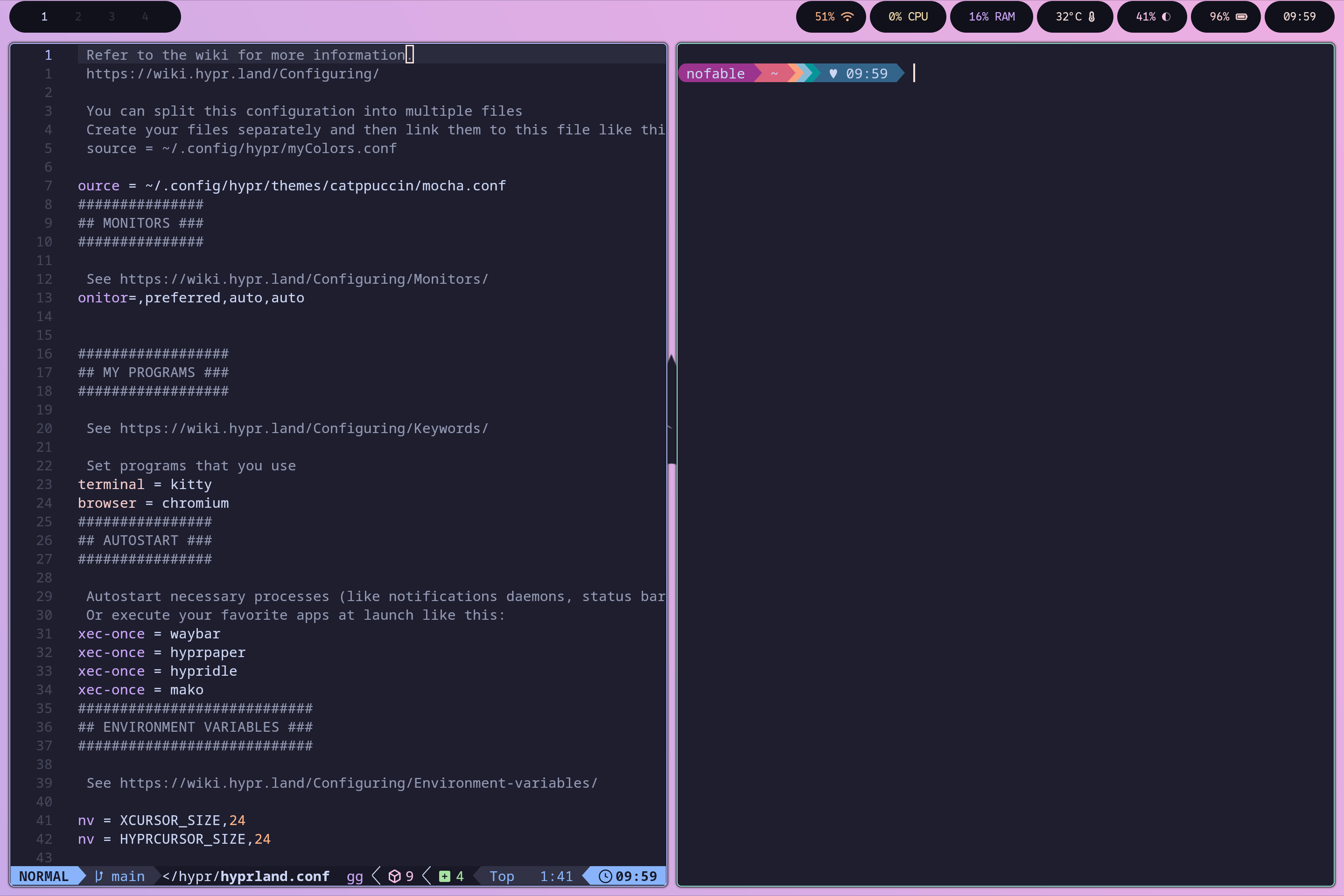
Having chosen early on to use Hyprland, I spend a number of days learning about all the different options and modules on offer.
Design Principles
I come up with a set of principles for myself to help guide my decision making:
- I want all my config to be version controlled.
- I like logging in via a shell. It reminds me that GUI is just a feature of an OS. I therefore don't need a Screen Manager.
- I want to stick with Arch Linux's philosophy of simplicity and minimalism. Install the minimum set of packages to reach a delightful, aesthetically pleasing developer experience.
- Use the terminal for as much as possible.
- Everything should be themed in catppuccin.
Tooling choices
I decide to use Stow to manage my configs. And here are my decisions of what packages to use:
Terminal
- Kitty for terminal
- Bash for shell
- Nvim & LazyVim for IDE and text editing
- Starship for prompt style
- fzf for fuzzy finding
- yazi for file explorer
GUI
- Hyprland for compositor
- Hypridle for idle timeouts
- Hyprlock for my lock screen
- Hyprpaper for my wallpaper
- Waybar for the menu bar
- Mako for notifications
Apps
- Chromium for the browser
And here is my final dotfiles repo with my basic setup.
Summary
I set out on this project with a loose top-level goal:
- Configure a new laptop with Arch Linux and Hyprland to the point where I can code in Rust in Neovim, and look things up on Chromium.
As I discovered more about Arch Linux and the installation process, my goals and design choices evolved. I introduced requirements for TPM-backed automatic unlocking under Secure Boot, version controlled configuration, being terminal-first and a consistent Catppuccin theme.
I learned a huge amount about Arch Linux, the boot sequence, device encryption, systemd, Hyprland, and all the open source packages I researched.
The result is a Framework 13 laptop that’s now a fully functional development workstation, matching the developer experience I’m used to on my MacBook M3 Air.